
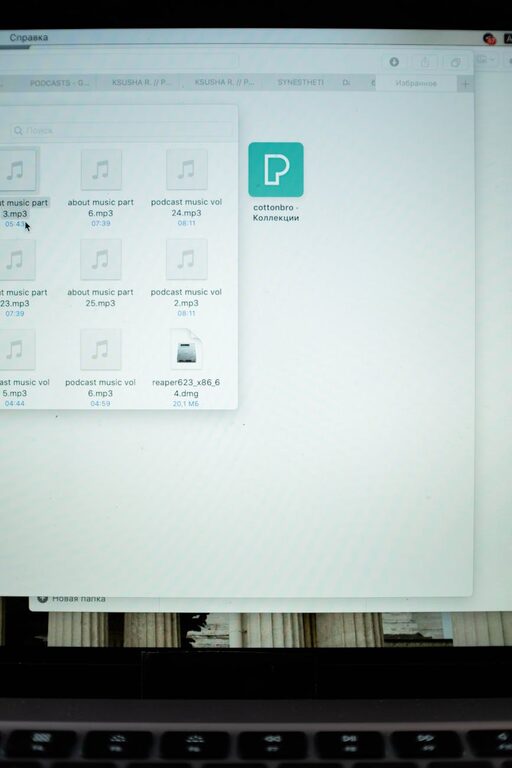
Keeping your computer files well-organized can save you time, reduce stress, and improve your overall productivity. Whether you use your computer for work, school, or personal projects, a neat file system helps you quickly locate important documents, avoid duplicate files, and maintain efficient workflows. In this post, we’ll explore practical tips for organizing files on your computer so you can enjoy a clean and efficient digital workspace.
Why Organizing Files is Important
Before diving into tips, let’s consider why file organization matters:
– Saves Time: Finding files quickly reduces the time wasted hunting for documents.
– Improves Productivity: A clear structure supports smoother work processes and fewer distractions.
– Prevents Data Loss: Organized backups and folders lower the chance of missing important files.
– Reduces Clutter: Having a tidy desktop and folder system helps maintain focus and reduces frustration.
Start with a Clear Folder Structure
Creating a logical folder structure is the first step toward organization.
Use Broad Categories
Begin by creating main folders for broad categories relevant to your use. Examples could be:
– Work
– Personal
– Projects
– Finances
– Media (images, videos, music)
Drill Down into Subfolders
Within each main folder, create subfolders to further organize files. For instance, the “Work” folder might have:
– Reports
– Presentations
– Meeting Notes
– Client Files
This layered approach helps you quickly navigate to the files you need without scrolling through endless lists.
Name Files and Folders Clearly
File and folder names should be descriptive and consistent.
Be Specific and Concise
Use names that clearly describe the contents, such as:
– “2024_ProjectPlan_March.pdf” instead of “Document1.pdf”
– “Vacation_Photos_Italy_2023” instead of “Photos”
Use Dates for Version Control
Including dates in file names can help manage versions:
– “Budget_2024-06-15.xlsx”
– “MeetingNotes_2024-05-01.txt”
Make sure to use a consistent date format, like YYYY-MM-DD, which sorts chronologically.
Avoid Special Characters
Stick to letters, numbers, dashes, and underscores to avoid compatibility issues across operating systems.
Utilize Desktop and Download Folder Wisely
Your desktop and download folders often become clutter magnets.
Keep Desktop Minimal
Use your desktop only for temporary files or shortcuts to frequently used folders or applications. Regularly clear items off to maintain a clean workspace.
Organize the Downloads Folder
Downloads can quickly become messy. Create subfolders inside Downloads, or periodically sort its contents into appropriate folders in your main directory.
Regularly Declutter and Archive
Maintaining organization requires consistent effort.
Schedule Routine Cleanups
Set aside time weekly or monthly to:
– Delete unnecessary files
– Move files to correct folders
– Rename unclear files
Archive Old Files
For files you rarely need but want to keep, create an “Archive” or “Old Files” folder. This keeps them accessible without crowding active folders.
Use Tags and Search Functions
Many operating systems allow file tagging or adding metadata.
Tag Files by Topic or Priority
Tags can help you group related files that might be stored in different folders. For example, tag files with “urgent” or project names.
Rely on Search Tools
Modern computers have powerful search tools that can find files based on name, content, or tags. A well-organized system combined with search reduces frustration.
Backup Your Files Regularly
File organization also includes ensuring data safety.
Use External Drives or Cloud Storage
Back up important files on external hard drives or cloud services like Google Drive, Dropbox, or OneDrive. Many services offer automatic backup and syncing features.
Keep Multiple Copies
Store backups in more than one location to protect against hardware failure or accidental deletion.
Leverage File Organization Software
If you handle large volumes of files, consider tools designed for file management.
Some popular options include:
– File Explorer (Windows) and Finder (Mac): Built-in tools with tagging and preview features.
– Duplicate File Finders: Help identify and remove duplicate files to save space.
– Automated Sorting Tools: Applications that can automatically sort or move files based on your rules.
Summary Checklist for Organizing Your Computer Files
– Create broad main folders and detailed subfolders
– Use clear, consistent file and folder naming conventions
– Keep desktop clean and organize Downloads regularly
– Schedule routine decluttering and archiving
– Utilize tags and search features effectively
– Backup files regularly on cloud and external drives
– Consider specialized software if needed
Organizing your computer files might seem like a daunting task at first, but by following these simple and practical tips, you’ll build a manageable system that keeps your digital workspace tidy and efficient. Start small, and gradually build habits that make your file management effortless and beneficial every day. Happy organizing!